


Mosaicat
Mosaicat
🖼️ Picture Slice: Grid Logic
Uncover hidden pixel artwork by slicing boards into precise logical shapes in Picture Slice: Grid Logic! Inspired by classic Japanese logic puzzles, every number on the grid represents the total tile area of the rectangle enclosing it. Carefully calculate dimensions, draw boundaries across the board, and watch as every correct rectangle transforms grid tiles into vibrant pieces of a hidden illustration! With zero timers or lives, enjoy a relaxing, purely logical puzzle experience across hundreds of handcrafted levels.
🌟 Key Features:
🧩 757 Machine-Verified Puzzles: Master 757 unique, strictly logical puzzles guaranteed to have exactly one valid solution without guessing.
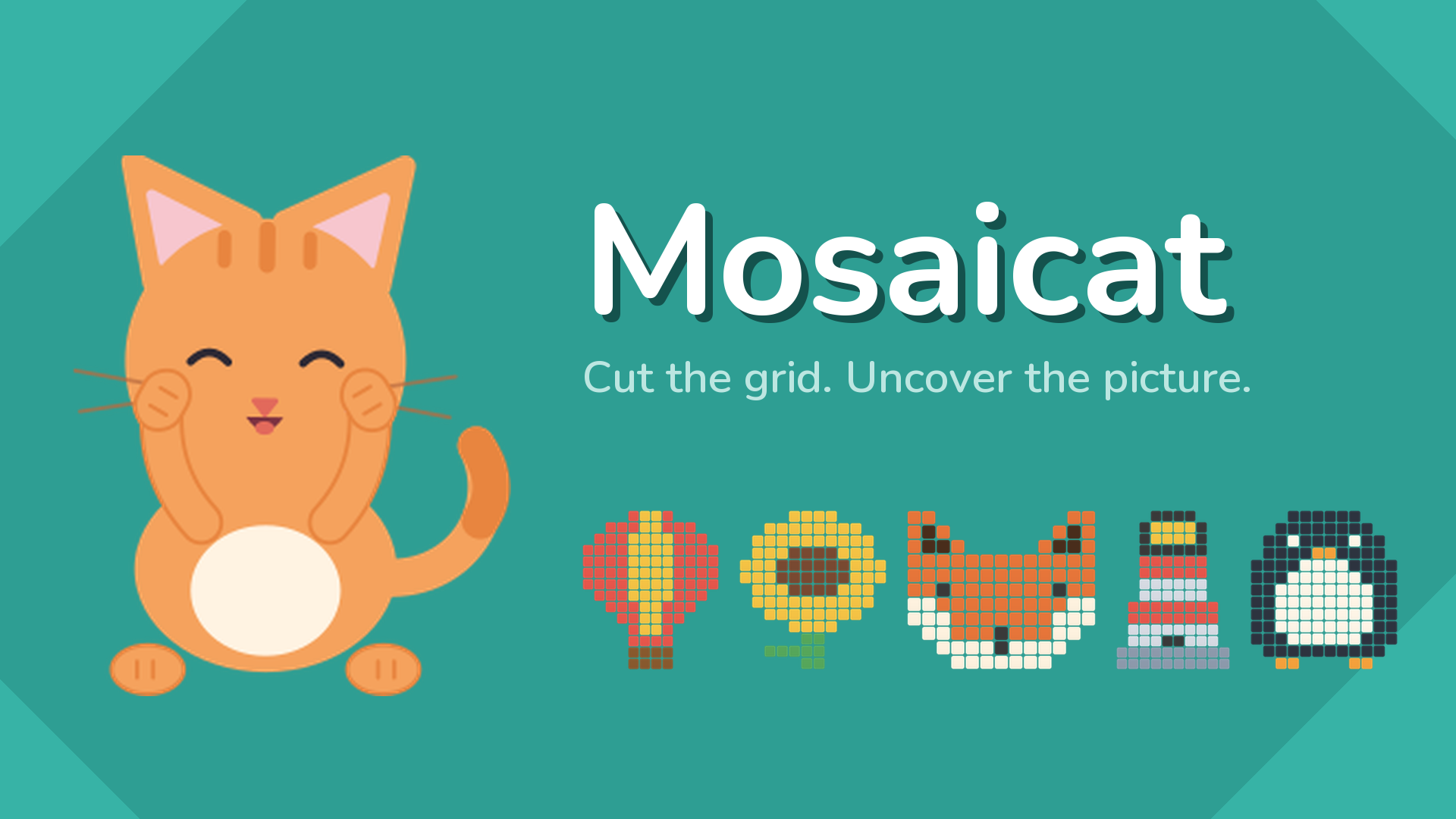
🎨 Progressive Visual Rewards: Watch custom illustrations—like teapots, cacti, and small orange cats—reveal themselves tile by tile with every move.
☕ Stress-Free Gameplay: Take all the time you need with no countdown timers, life counters, or penalties for incorrect attempts.
🎨 10 Color Themes: Personalize your puzzle-solving atmosphere with 10 custom light and dark visual themes.
🐱 Endless Replayability: Enjoy fresh puzzle generation for completed artwork once you finish the main level progression.
🎮 How to Play & Controls:
🎯 Objective: Enclose every number in a valid rectangle of matching square area until all tiles on the board are covered to reveal the picture.
💡 Rules & Slicing Strategy:
• Match Area to Number: Each rectangle must contain exactly one number matching its square count (e.g., a 6 can be drawn as 1x6, 2x3, 3x2, or 6x1).
• No Overlaps: Rectangles must cover every square on the grid without overlapping one another.
• Use Hints Wisely: Tap the hint button to automatically reveal one valid rectangle when you are stuck.
💻 PC Controls:
• Draw Rectangle: Hold the Left Mouse Button and drag across the grid, then release to place the rectangle.
• UI & Menus: Left-click on-screen buttons for Hint, Restart, and Settings.
📱 Mobile Controls:
• Draw Rectangle: Press and drag your finger across the grid, then lift to place the rectangle.
• UI & Menus: Tap directly on the screen for Hint, Restart, and Settings.